Working with AI
Paircut works with an AI assistant: you pick the footage, watch and say what to change; the AI builds the edit, fixes it on request, adds graphics, picks music and renders. Everything the AI does arrives as normal storyboard edits that you can see, change and undo. You can also work with no AI at all.
The AI tab (chat)
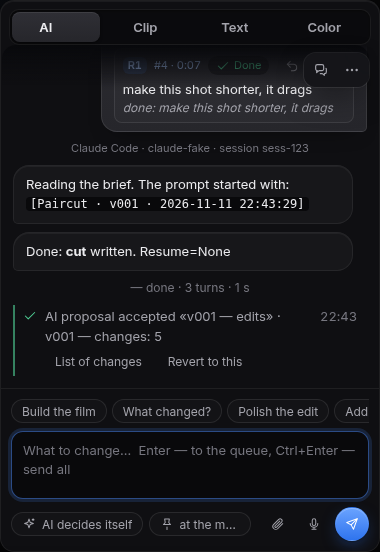
The chat with the assistant is the AI tab of the right panel (the first tab, open by default). It has no header; two small icons float in its top-right corner:
- Conversations (speech bubbles) — New conversation, the current one with a tick, older ones by date. Each conversation is marked with the assistant that answered in it. The last conversation of a project reopens when you come back to the project, and the assistant continues where it stopped.
-
⋯ — less frequent things:
-
Hide right panel (
Ctrl+]brings it back), Right panel full height; - Assistant settings… (opens Paircut settings → AI assistant: program, sign-in, billing, permissions);
- Local model…, ffmpeg command log…;
- Show AI steps — show the assistant's tool steps in the feed (hidden by default in Quick);
- Do requests right away — the same as the Right away / Collect switch (see below);
- Studio only: Attach the brief, Share the current moment;
- Render tasks · N — the list of tasks that go into every render via AI (appears when there are any).
-
Hide right panel (
Under the message box: the chat-kind and "where" chips (after the film is built), Stop while the assistant works, the paperclip (attach a photo or video), the microphone (dictation) and Send. Enter sends, Shift+Enter starts a new line. While the AI works the feed shows Thinking… or Running: with the tool name.
Hidden the chat? Ctrl+], the View menu, or Show the chat in the assistant menu bring it back.
Quick chips above the box: Build the film, What changed?, Polish the edit, Add graphics.
Choosing the assistant and the model
The assistant and its model are chosen in one place: the AI assistant icon on the left icon rail (the assistant's mark with a small AI spark; a red dot means it is not connected), or Ctrl+/ (Cmd+/ on Mac). AI → Assistant and model… opens the same menu.
- Assistant: Claude (Claude Code, needs a Claude Pro/Max subscription), ChatGPT (Codex, needs ChatGPT Plus/Pro), Local model (Qwen on this computer, free and offline), No AI (you edit, Paircut renders). Each line shows its state: ready / sign-in needed / not installed / not running.
-
Model for this project — e.g. Fable 5.1, Opus 5.5, Sonnet 5.5, Haiku 5.5, or "always the latest" aliases for Claude; your subscription's models for ChatGPT; downloaded models for the local assistant (choosing one starts it). The choice is saved with the project. The default for projects without their own choice is in Paircut settings (
Ctrl+,) → AI assistant.
Switching assistants works on the fly and keeps the conversation: the new assistant gets a short recap of what was said before.
If the assistant is not installed or not signed in, the chat shows step-by-step instructions instead of the feed: the install command with a copy button, Open a terminal to sign in, Check again, Step-by-step wizard.
Before the film is built: just talk
Until the first build, everything you type in the chat goes straight to the assistant as a normal message: "build a 3-minute film about the second day", "what is in my footage?", "which clips are the best?". The usual way to build is the Storyboard node of the workflow graph → Build the film (or the setup wizard, see Getting started). Requests written before the build wait and go with it.
Asking for changes (requests to AI)
Once the film is built, the chat box writes requests:
- Find the place: play the storyboard, open a card or a clip. The request is tied to the moment where the film is when you start typing.
- Type what to change: "shorter", "another shot here", "remove the shaky part", "make this brighter", "the music is too loud at the end".
-
Press
Enter. The request appears as a chip above the box (click it to jump to the moment, ✕ to delete it). -
In Right away mode it goes to the AI by itself about 2.5 seconds after your last request (several quick ones go together).
Ctrl+Enter(Cmd+Enter) sends everything at once.
Two chips under the box control the message:
- Where: at the moment · 1:23 or the whole film — click to switch. A request to the whole film ("make it 2 minutes", "fewer photos") is not tied to a card. With a part heading selected (or a part in focus on the board) it reads to the part — AI changes only that part; it may send it back as a new alternative (A | B in the part). See The board and the parts of the film.
- Kind: AI decides: an edit or a message (default) → a storyboard edit → just a message — click to cycle. By default Paircut guesses from the words ("cut", "remove", "make brighter" — an edit; a question — a message); when unclear, a fast model decides (the chip shows AI decides: an edit or a message with a spinner). A message is not a request: it goes to the assistant as normal chat and doesn't touch the queue. A question asked while the AI is busy waits and goes as soon as it finishes.
Other ways to make a request: the Ask AI button under the player and C (see below), a card Note (double-click a card), an AI fragment, voice (Voice control).
Right away or Collect
The switch next to the request chips (Right away | Collect, also ⋯ → Do requests right away):
- Right away (default): each request goes to the AI by itself, and the AI's answer is applied by itself — you see the result at once and can undo it. A countdown next to the switch says when they go: Will be sent in N s, AI is busy — they go with the next turn, They go once you have reviewed the AI proposal. Not applied by itself, shown as a proposal instead: when the AI did only part of what you asked, a change to the whole film, a reorder or new cards you didn't ask for, and anything you changed too while the AI worked. If the film is playing, changes are applied when you pause.
-
Collect: requests pile up (Collecting — send when you have them all). Send them with Apply to storyboard · N or
Ctrl+Enter;Enterand the Send button only add to the queue. The answer always comes as a proposal with Accept.
While the AI is working
You don't have to wait. Keep watching, editing and writing requests. In Collect mode Apply to storyboard doesn't refuse — it becomes Sending after AI · N (click to cancel) and goes as soon as the AI is free, together with everything you add meanwhile. In Right away mode new requests go with the next turn.
Manual edits you make while the AI works are kept: the AI's answer is laid over your current storyboard — cards you removed don't come back, cards you added stay, and the proposal says Your edits made while AI was working are kept. If you and the AI changed the same thing, that line is unchecked and marked you changed it too.
Stop under the box stops the assistant's turn.
Request statuses: done, not done, answer, AI asks
Every sent request gets a number (R1, R2…). The message that sent them is labelled Requests to AI and lists them with where they apply, the status and the AI's reply:
| Status | Meaning |
|---|---|
| AI is working | sent, the AI is on it |
| In the proposal | the change is in a proposal waiting for you |
| Done | applied |
| Will do at render | it only shows in a render (an effect, a look, an animation) — the AI does it at Preview / Render via AI |
| Answer | it was a question — the reply is under it |
| AI asks | the request could be read more than one way — the AI asks instead of guessing (see below) |
| Answered | you answered the AI's question — the request went again with your answer |
| Not done | the AI couldn't do it (it says why) |
| Not accepted | you didn't accept that change |
| Undone | you undid it |
| No report — see the reply | the AI didn't report on it — read its message |
- AI asks — the question is under the request, with its answers as buttons (the AI's own choice first). Click one, or Answer in the chat and type: while the chip Answer to R… is over the chat field, the next message answers the question instead of becoming a new request (✕ on the chip — a new request). The answer goes out with the request itself, so the AI does it without asking again. It asks only when it would be guessing — which caption, which shot, two very different readings, a big change asked vaguely, or something against your own edits; a small clear request it just does and says in its reply which reading it took.
- The AI can ask in the conversation too — about the film, the plan, before a build: its questions come with the answers as buttons, its own choice already picked. One question — click an answer and it goes at once; two or three — pick and Send answers. Or just type your own: while a question is open, the chip Answer to the AI's question is over the chat field and your message goes to the AI as the answer, not as a storyboard request (✕ on the chip — a request).
- After a change the AI checks its own work before handing it over: it looks at the cards it touched as they will be rendered — captions, graphics, frame and color — and fixes plain mistakes (text over a face or outside the frame, a caption nobody can read on a bright sky, a style that doesn't match the film's other captions, a jump in color). What is a matter of taste it only mentions in one line of its reply.
- Send again (circular arrow) — for not done / not accepted / undone requests: puts it back as a comment at the same card.
-
Undo (undo arrow) next to a done request — returns the storyboard to how it was before that AI answer (all changes of that turn).
Ctrl+Zworks too, and Edit → Revert to before the last accepted AI proposal.
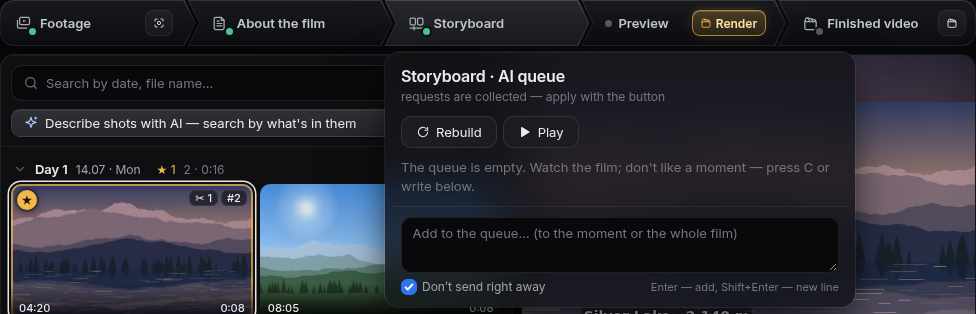
The Storyboard node of the workflow graph shows the same queue: a badge with the count (blue — AI is working, yellow — collecting or a proposal waits, red "!" — not done, green "✓" — done since the last preview). Click the node for its window Storyboard · AI queue: Now / Next / Done / Didn't work out, with show, undo and send again.
The AI proposal: review, watch with changes, accept
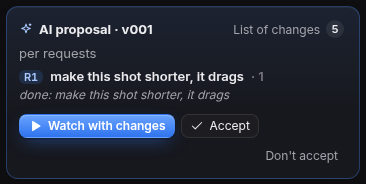
When an answer isn't applied by itself, it appears as AI proposal above the chat box:
- Changes are grouped by request: the request's number and text, the AI's reply, then its changes. Changes the AI made without being asked are under AI also changed on its own.
- List of changes expands every line with a checkbox: which card (click #N to show it), what changes — range, speed, transition, stabilization, frame, J/L, texts, pictures, sound, shot colour, note, Pieces and order — and the AI's reason. Collapse folds it back.
- On the storyboard, changed cards get a frame and an AI badge; new cards are marked new.
- Watch with changes plays the film with the proposal from the card before the first change. A bar Film with AI changes · not accepted yet appears; Without changes switches back and forth from the same place. Nothing is saved while you watch — edits made during the preview are not kept.
- Uncheck what you don't want → Accept selected (or Accept when everything is checked); Don't accept keeps the storyboard as it was.
After accepting, the chat gets a record with the list of changes and Revert to this; every accepted proposal is also a milestone in History (Ctrl+H). Music and sound tracks follow the cards they were under.
Locked cards (card right-click → Don't let AI touch it (lock)) can't be changed by the AI; their lines in the proposal are disabled.
Ask AI, Enhance and Insert under the player
Under the player, next to ✦ AI:
-
Ask AI in Quick, Ask in Studio (
C) — a comment at the current moment. A small panel opens: where, a text field, quick chips (Shorter, Remove this, Another shot, Slower, Quieter music, Brighter, Caption here). With an empty field a chip saves the request at once; while typing it adds to the text.Entersaves,Esccancels. -
Enhance (
R) and Insert — mark an area of the frame: drag a box over the shot, then write what to do.- Enhance — "remove the artefact", "brighten the face", "blur the plate number". AI fixes it in the edit when it can, otherwise does it at render.
- Insert — "a caption here", "an arrow to the peak", "our logo". AI makes it an editable element (text or picture on the frame) that you can then move and resize.
- Set how long it holds: N s, until the clip ends, until the film ends.
In Quick the Enhance and Insert buttons are hidden, but they are in the Ask AI panel (row On the frame: Enhance a spot · Insert on the frame), in the AI menu → On the frame, and in the frame's right-click menu. Press the button again or Esc to cancel drawing. With Claude or ChatGPT an Enhance area goes to the AI as a request; with the local model (or before the film is built) it becomes a render task straight away.
Comments on a preview or render
While watching a preview or finished video, C / Ask AI puts a comment at that moment of the render. It goes to the AI right away, and the AI decides: if it's about the edit, it changes the storyboard; if it only shows in the picture, the status is Will do at render and the comment stays as a render task.
Render tasks
Some things can't be done in the storyboard — a special effect, a look, a picture from the internet, highlighting something. They become render tasks: a card note starting with [render], or an area on the frame. They go into every render via the AI agent (not just once). See them in ⋯ → Render tasks · N ("Go into every render via AI"), delete with ✕. The built-in render (no AI) doesn't do them and warns you. More in Preview and render.
AI fragments and card notes
- AI fragment — a slot in the film that the AI fills itself: a shot from your footage, a freely licensed photo or video from the internet, an animated map or title. Add it with the AI fragment button above the storyboard (Studio; drag it to a place) or Storyboard → AI fragment / storyboard right-click (both views). Its window has a text field, example chips and a length (5/10/20/30 s).
- Note on a card (double-click the card) — "make this more dynamic", "something with the lake here". A new note is a request like any other. It shows on the card in yellow italics.
- Comment for AI on the whole piece — right-click a piece on the clip's bar under the player.
Polish the edit and add graphics
- Polish the edit (chip in the chat, AI menu): same pieces, same order — the AI refines details: a better moment of a clip (slip), cuts on music beats, J/L cuts where speech crosses a cut, stabilization of shaky pieces, cut edges not in the middle of a phrase, clean speech (see below). Each change comes with a reason, as a proposal with checkboxes.
- Add graphics (chip, AI menu): the AI adds animated graphics where they explain something — names, place and date, numbers, lists, callouts. The edit itself doesn't change. How much graphics the AI uses on its own is set in About the film → Graphics on the frame; see On the frame.
Claude/ChatGPT do both with judgement; the local model and No AI use simple rules (shaky → stabilize, flawed start → best piece, cuts → beats; title, chapters, date or place at the start of a day).
Clean speech: ums, stutters and bad takes
When people talk in your footage, Claude/ChatGPT clean the speech on every build and edit, without being asked: "uh" and "um", a repeated word, a sentence begun and started again, long pauses in the middle of a thought. A card can become several pieces of the same clip with short jump cuts — normal for someone talking to the camera; the AI hides them under another shot or a slight zoom-in where it can. Of a line said several times it keeps the finished take with the fewest stumbles. The transcript is the source: the speech must be transcribed (Footage analysis → Speech).
How much is set in About the film → Speech:
- natural — only the starts and ends of the pieces are tidied (no "um, so…" at an edge), plus false starts and very long pauses.
- clean (default) — also "uh/um" and stutters inside the pieces.
- tight — also filler words like "so," "like," "you know" and shorter pauses.
You can also just say it in the chat ("keep the speech natural", "cut the speech tighter") — the AI follows it and updates the field.
- The local model and No AI: Polish the edit moves piece edges past an "um, so…" or a false start.
Giving the AI context: drag, right-click, attach files
- Drag clips from the library or cards from the storyboard onto the chat, or right-click a clip, card, several cards or the frame → Add to chat. They appear as chips above the box (✕ — Remove from context) and go with your next message: card number, file, range, note; for a clip — type, length, marks, description, and the moment (I–O, the fragment or the current time).
-
Photos and videos: the paperclip, drop a file from your computer on the chat, or paste a picture with
Ctrl+V. Paircut copies it into the project and tells the AI where it is ("use this logo", "put this photo after #4"). - Dictation: the microphone by the box — click, speak, click again; the text appears in the box and isn't sent by itself.
What each assistant can do
| Claude / ChatGPT | Local model | No AI | |
|---|---|---|---|
| Build the whole film | yes, by meaning | rough cut by rules (best pieces, days) | Rough cut button |
| Edits on request | complex ones, several at a time | simple: "remove #5", "shorten this slide by half / to 3 s", "write … on this shot" | — |
| Enhance an area of the frame | in the edit or at render | becomes a render task | — |
| Music from the internet, animated inserts, titles | yes | no | — |
| Fill AI fragments | footage or internet | only from your footage | — |
| Shot colour, sound, graphics | yes | graphics by rules | graphics by rules |
| Describe shots (search by content) | yes, fast model | yes, on this computer | — |
| Render | built-in or via the agent | built-in | built-in |
The local model is honest: what it can't do in the edit (zoom, colour) it writes as a render task instead of claiming it did. AI fragments it couldn't fill go back to the queue; switching to Claude/ChatGPT returns them automatically.
Local model: download and start
Local model… (chat ⋯, AI menu) opens the window: Paircut checks your computer (memory, graphics card), recommends a Qwen3-VL model and estimates the speed. Download fetches the server and the model (resumes if interrupted), Start runs it; Start chat switches the chat to the local assistant. The model server runs separately from Paircut and keeps using video memory while running — stop it in the same window.
When a turn fails
If the assistant's turn fails (an error, or it answered without doing anything), the requests come back as drafts over the chat field: "The assistant's turn failed — your requests to AI are back". They do not go again by themselves, even in Right away — the line under them says Not sent — send manually. Press Send when you are ready, or switch the assistant and send. Changing the requests (or writing a new one) turns the automatic sending back on. If the turn was stopped or crashed without a result, its requests are marked Not done with Send again.
The usage limit of your plan. When your Claude or ChatGPT plan runs out of usage for the current period, the turn fails with the provider's message — for example "You've hit your 5-hour limit · resets 9:10pm". Your requests are kept: send them after the reset, or switch to another assistant (the conversation is shared — see "Choosing the assistant and the model").
Long conversations: what the AI remembers
You can keep one conversation for the whole film. Paircut keeps it light, because a very long conversation uses up your plan's limits quickly — the AI reads the conversation again at every step:
- When the conversation gets long, Paircut continues it in a fresh session. In the chat this is one line — Fresh Claude session — the project notes and the recent conversation carry over — and nothing else changes: the same conversation, the same film. Right before that the AI saves its notes (the assistant is busy for a few seconds longer after its reply).
- What carries over: the film itself (the storyboard, your edits, the description), the latest messages and requests with their answers, and the project notes — the AI's memory of this film.
- Standing instructions — "location captions always top left", "my voiceover without fades", "never use this shot" — say them once: the AI writes them into the project notes and follows them in every later session. To be sure, ask "what do you have in the project notes?" or "add to the project notes: …"; to change one, just say so.
- What does not carry over word for word is the old back-and-forth. If the AI seems to have forgotten a detail from long ago, repeat it — and ask to put it in the notes.
Tips for spending less of your plan: ask for several small changes in one message (or use Collect); pick a lighter model for small edits (the AI assistant icon on the left panel) and the strongest one for the build and polishing.
"How do I…?" questions
Ask the assistant in the chat ("how do I add music?", "how to make a vertical short?") — it answers from this tutorial, with pictures and links. The Tutorial window (F1, Help → Tutorial) has its own box at the bottom: Ask AI how to… — a separate conversation, so it doesn't mix with your film's chat.
MCP: Paircut in your own Claude chat
You can also edit from your own Claude Desktop or Claude Code chat. Paircut settings (Ctrl+,) → AI assistant (or the setup wizard, Assistant step → Claude Desktop / Code (MCP)…):
- Claude Desktop → Connect, then fully quit and reopen Claude Desktop;
-
Claude Code → Connect (the tools are there in the next
claudesession), or copy the shown command into a terminal.
Then say in that chat "show me the shots from day two", "remove repeats", "make a preview" — the changes show up in the open Paircut window right away (with the project open). When Paircut moves to a new version, the connection path updates by itself.
Next
- Preview and render — rendering with or without AI.
- On the frame — text, pictures and graphics the AI can add.
- Voice control — the same requests by voice.
Paircut is free to download. macOS, Windows and Linux. Works with Claude Code, Codex or a local model.
Download Paircut