The board and the parts of the film
The Board is the same project seen from a step back: the footage, About the film, the storyboard of the whole film divided into its parts, the preview and the finished video — as blocks on one canvas, with arrows that show what is up to date and what needs work. You can work right there: the real storyboard sits in its block, a part can be pulled out into a block of its own, footage can be sorted into groups.
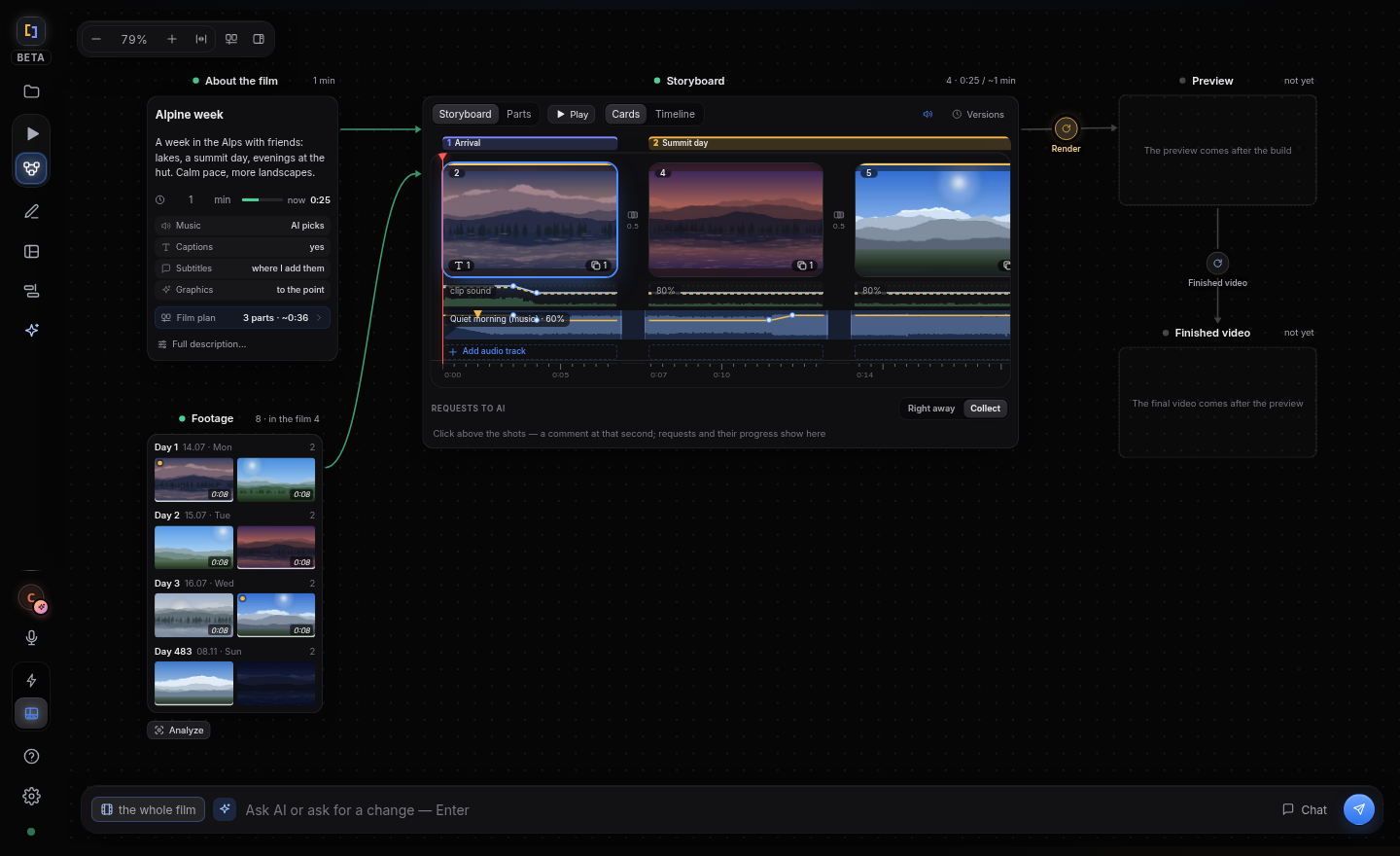
Player and Board
The left rail has two equal tabs at the top: Player (the usual editor) and Board. Switch with the icons or with the ` key. Each project remembers which tab was open. Esc does not leave the board — use the Player tab.
Moving around the board
-
Drag an empty spot — move the board; the mouse wheel scrolls it (
Shift— sideways). -
Select with a rectangle: hold
Shiftand drag from anywhere on the board — even from a thumbnail or a card — or drag from an empty spot inside the Footage block (the rest of a day's row). The Footage thumbnails and storyboard cards it touches are selected (Ctrl— add to the selection). Drag one of the selected clips — all of them go (into the storyboard, a part, a group);1/2/3mark them,Delmarks them ✕ Exclude. A click on an empty spot clears it. -
Ctrl+wheel or a touchpad pinch — zoom at the cursor;+/−/0(100%),Shift+1— show everything. -
The small bar at the top left: zoom out / the zoom level / zoom in / Show everything (Shift+1), Tidy up (the blocks go back to their places) and the chat button (one line at the bottom or the whole conversation on the side,
Ctrl+]). - Drag a block by any empty spot (the ⠿ grip in its header) to move it; drag its left, right or bottom edge or a bottom corner to resize it. Blocks never overlap — the neighbours move aside.
The blocks and the arrows
- Footage — the clips by shooting day with their marks. Click a clip to see it in the player, drag it into the storyboard.
- About the film — the title, the story, the length (with "now m:ss" against the target), music, captions, subtitles and graphics in rows, and one line for the plan. Type right there — it is saved on a pause; Full description… opens the window.
- Storyboard — the film itself (see below).
- Preview and Finished video — the latest renders, with the reason when they are outdated.
The arrows between the blocks are coloured by state: green — up to date, yellow — outdated, blue — work is going on. An action that updates the next step sits on the arrow as a round button: Update the storyboard after the description changed, Apply · N collected requests, Render an outdated preview. While AI works or a render runs the arrow shows the progress.
A step that needs nothing is quiet — no words; only what needs your attention is written.
The storyboard on the board
The film block holds the real storyboard — the same one as in the Player tab, with Cards | Timeline, the audio tracks, transitions, the right-click menu and drag and drop. Its bar on top has Storyboard | Parts, Play, the view switch, the timeline zoom, the audio tracks and Versions · N. Drag the block's bottom edge to make it taller.
When you click a card, a clip or a render, it opens in the player that floats over the board (top right): the same player with the card's strip, its cuts and number, all the tools under the frame. Close it with ×, resize it by its left edge, bottom or corner. Play plays the film in it; the red line runs over the storyboard.
Versions · N lists the snapshots saved before every AI turn: compare one with the current storyboard, Restore it (Ctrl+Z brings yours back) or Save version of your own.
Parts of the film
When AI makes a plan (see The director's plan), the film is built part by part: each part is a chapter of the storyboard with its own description — a one-line note, what happens, its length, pace and mood. On the board the storyboard is divided into the parts: a coloured band over each part's cards.
- Click a band — the part is in focus: the storyboard scrolls to it and the timeline zooms so the part fills the width, the other parts are dimmed, the bar shows the part's name, length, Play the part and its versions. The chat is now about this part. Esc or ‹ Film — back to the whole film.
- Double-click a band — the part window (below).
- Drag a band along the storyboard — the part moves with all its cards.
The Parts tab of the film block lists the parts as rows: unfold one to see its own strip of shots and its description, Play the part, Ask AI about this part, Details…. Unfold all opens all of them. The bar sums the progress up: how many parts are ready, which need an update, which you haven't looked at yet, which are only planned.
Part statuses, Update and Ready
Each row reads "description → status → cut". The status is set by the board itself:
- AI is updating the part;
- the part's description changed (you edited it) or the film description changed in what shapes a cut (the story, the style, the length, captions, graphics) — the row offers Update: only this part goes to AI, the other parts stay as they are. The arrow from About the film shows Update · N for all such parts at once;
- another version waits, the part changed since you last opened it, the part is locked.
Ready is the only mark you set by hand (in the part window): you are happy with this part — AI changes it only when you ask, and Update · N skips it.
The part window
Double-click a band (or Details…): what the part is about, its alternatives (A | B — another cut of the same part: calmer, faster, more talking; you pick which one is in the film), its versions, the requests to it and Ask AI about this part, the joins in and out, Play the part and Play in context, Lock from AI, Earlier / Later (move the part), Ready, Dissolve into the film (removes only the heading) and Delete the part… (with its shots; Ctrl+Z brings it back).
A part in a block of its own
To iterate on a few parts faster, pull them out: drag a band (or a row of the Parts tab) onto the empty board, or right-click it → Open in a block of its own. The part stays in the film — the block is its workplace: the description, its strip of shots, Play the part (a second click pauses), A | B, Details…, a line to ask AI about this part and its requests with the status and Update. A ribbon in the part's colour connects the block to its band. × puts the block away.
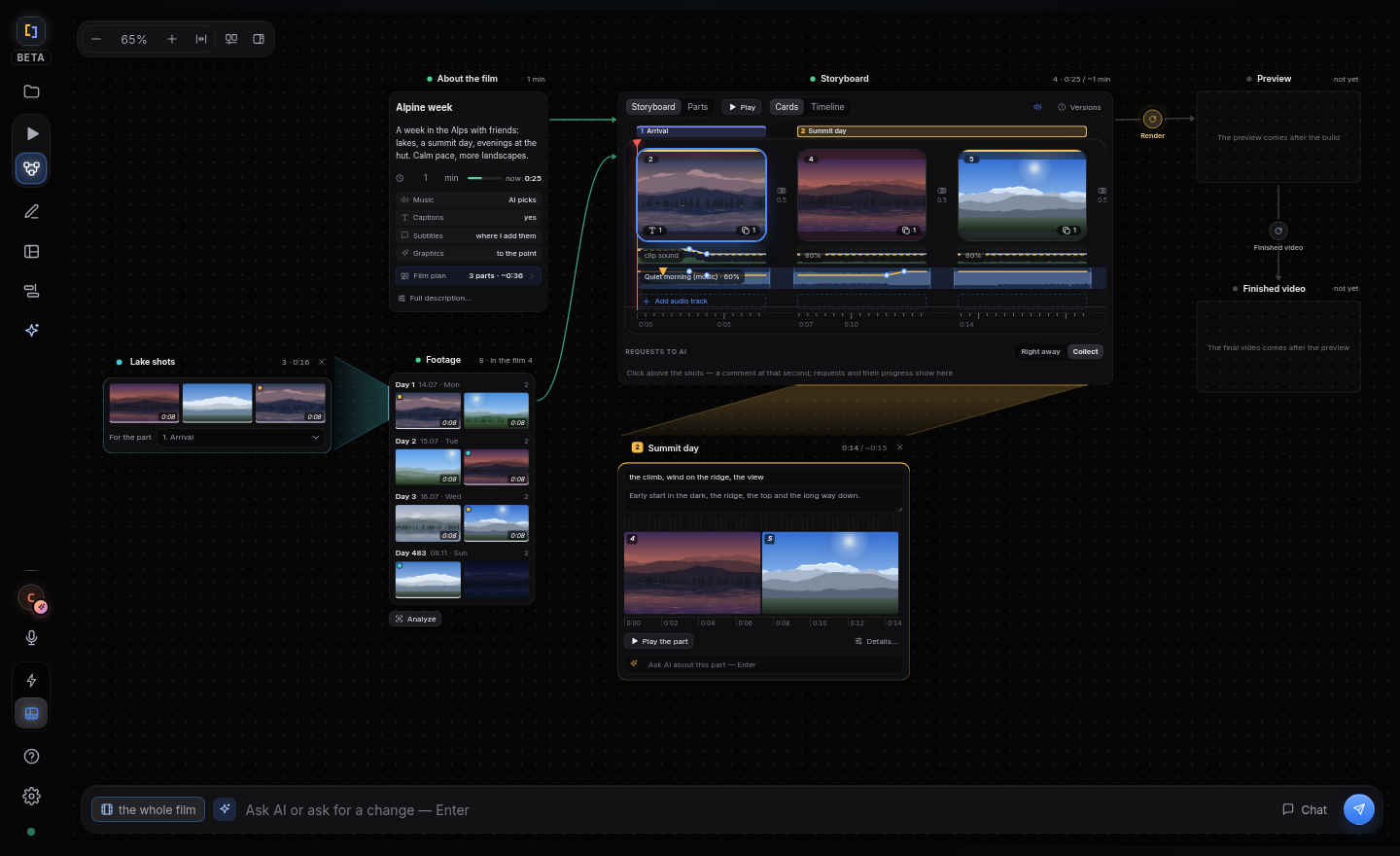
Pieces: a part apart from the film
Right-click a part's band or row:
- Work on it apart — a draft copy of the part's cut; the film keeps its cut until you Put into the film.
- Take out of the film — its shots leave the film's storyboard, the part stays in the plan as a piece. Pieces are listed under Not in the film on the Parts tab and stand as blocks of their own on the board.
A piece has its own storyboard: open it (Work on it) and the player, the sound, the preview and requests to AI work on it as on a short. Put into the film puts it back — in place of the part's shots, or after the part it followed.
Groups of footage
Sort the footage into named selections — easier to work on one part of the material at a time:
-
drag a clip, several clips selected with
Ctrl/Shift+click, or a whole day (by its heading) out of Footage onto the empty board — a group block appears where you drop; - or right-click a clip → To a new group / To the group: ….
In the group block: rename it in its header, drop more clips on it, × on a clip takes it out of the group, × in the header removes the group (the footage itself is never touched; Ctrl+Z works). Drag clips from a group into the storyboard or a part's strip like from Footage. For the part ties the group to a part — AI is told that this is the material for that part. Clips that are in a group carry its coloured dot in Footage.
The chat on the board
By default the chat is one line at the bottom of the board with the last AI answer above it; the button in the top-left bar switches to the whole chat on the side. It is the same conversation. What is selected on the board is where a request goes: a card, a part in focus, or the whole film.
Next
Paircut is free to download. macOS, Windows and Linux. Works with Claude Code, Codex or a local model.
Download Paircut