Text panel and edit by text
Paircut turns speech in your videos into text, phrase by phrase. With the Text panel you can read what is said in a clip, pick the phrases you want and drop them into the storyboard, cut slips, "um"s and repeats out of storyboard cards by deleting text, remove long pauses, and fix words the recognition got wrong. Good for interviews, vlogs, talks, tutorials — any video where people speak.
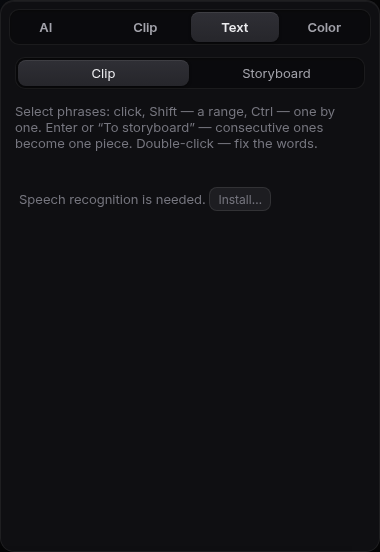
Where the Text panel is
It is a tab of the right panel, next to AI.
- Studio: the Text tab button above the right panel.
-
Both views:
- By text in the storyboard header (shown when the storyboard has video with sound) — opens the panel on the storyboard;
- Speech · N under the player (shown when the open clip has transcribed speech; N — the number of phrases);
- rail menu View → Right panel → Text-based edit;
- right-click a video card → Edit by text…, or rail menu Storyboard → Edit by text… — opens the panel at that card.
In Quick the tab button appears while the panel is open. Go back to the chat with the AI tab.
The panel follows the player
At the top there is a switch Clip | Storyboard, and the panel picks the mode by what is open in the player:
- a clip from the library is open → Clip: the speech of that one clip, to choose phrases for the film;
- a storyboard card is open (or nothing) → Storyboard: the speech of all the film's cards, to cut text out.
Switch by hand at any time (Clip is offered only when a video clip is open). Open another clip or card — the panel follows. While a video plays, the current phrase is highlighted and the list scrolls to it.
Selecting phrases works like selecting text: click — select and jump the player to that phrase; Shift+click — a range; Ctrl+click (Cmd on Mac) — add or remove one; Ctrl+A — all; Esc — clear the selection.
Clip mode: build the edit from what is said
- Open a clip in the library (single click). Its phrases are listed with their time in the clip.
-
Select the phrases you want — click,
Shift,Ctrl. -
Press To storyboard · N at the bottom, or
Enter(orB).
Consecutive phrases (with less than about 0.6 s between them) become one piece; separate ones become separate cards. Each piece gets a little air before the first and after the last word. The new cards go after the selected storyboard card (or at the end). Phrases already used in the film are marked with the card number (#3) — hover to see all. Clear selection — start again. Ctrl+Z undoes the insert.
If the clip has no transcript yet: Transcribe (this one clip) or, if recognition is not installed, Install…. "The clip has no sound." — nothing to transcribe.
Storyboard mode: cut by deleting text
The speech of every video card with sound, in film order. Cards are grouped: a card and the pieces it was cut into are one block (#4–6, the clip name, "3 pieces"). Each phrase shows its film time; a phrase that has been cut out is struck through and shows —.
-
Cut a phrase: select it and press
Delete(orBackspace), or Cut · N at the bottom. The time of the phrase is removed from the card; the rest of the piece — including the silence around the phrase — stays. A card may split into several pieces. - Restore · N — bring selected struck-through phrases back (within the original piece).
- Keep only the selection — in those cards only the selected phrases remain; everything else is cut.
- Click a phrase — the player jumps to that moment of the film.
-
Ctrl+Zundoes any step; the struck-through state is read from the cards themselves, so it survives closing the panel and undo.
Not included: reversed pieces, pieces with a speed ramp, clips without sound. A card with Don't let AI touch it (lock) is not cut — remove the lock first.
Remove pauses
Remove pauses longer than [1] s at the top of the panel cuts silences longer than the given length (0.3–10 s) between phrases in the whole storyboard, keeping a short breath around each phrase. "No long pauses" — nothing to cut. Ctrl+Z brings them back.
Tip: after cutting by text, watch the joins with Play — a dissolve or a J/L cut (Sound and music) can smooth a jump.
Speech line on the frame
While you watch a clip or the film, the phrase being said is shown as a line at the bottom of the frame — handy for finding a moment by ear and eye. It is only in the player, never in the film. Turn it on/off: rail menu View → Speech on the frame. It is hidden while you edit a text on the frame.
Fix words in a transcript
Recognition makes mistakes — names, places, terms.
- In the Text panel double-click a phrase (or click the pencil that appears on hover).
-
Edit the text in place;
Enter— save,Esc— cancel (clicking away also saves). -
Empty text +
Enterremoves the phrase from the transcript.
The correction is used everywhere: subtitles, library search, the brief and the AI's view of the footage. A re-run of speech analysis doesn't overwrite a corrected transcript; Footage analysis shows it as corrected by hand. You can also ask the AI in the chat to check the subtitles — it can fix transcript lines itself.
Transcribing speech: how text appears
Speech is recognized on this computer with faster-whisper — nothing is uploaded.
- Once recognition is installed, Paircut transcribes new footage by itself when the project opens (silent clips are skipped).
- In the panel: Transcribe for the open clip (Clip mode); Cards not transcribed: N → Transcribe speech for the storyboard cards.
- All footage, or again with a different model: AI → Footage analysis… → the Speech part — see Library and fragments.
-
Your own subtitle file is picked up too: an
.srt,.vttor.txtwith the same name next to the video.
Installing recognition
If recognition is missing, the panel shows Install speech recognition (in Clip mode — Install…). It opens Footage analysis, where Install in the Speech part sets up faster-whisper in a separate Paircut folder. Needs internet once; the speech model downloads on the first run. With an NVIDIA card Paircut uses the GPU, otherwise the CPU (slower). The same recognition powers voice control and chat dictation.
Subtitles
Subtitles are a film setting: About the film → Subtitles (also the wizard's Film step and Film settings → Music and captions → Subtitles):
| Option | What happens |
|---|---|
| not needed | no subtitles |
| automatically from speech | subtitles from the transcripts of the pieces in the film |
| only where I add them | no automatic speech subtitles — only the text you place on the frame yourself or ask AI to add |
With automatically from speech, a language list appears next to the choice — in the language spoken (the default), English, Russian, Spanish, Portuguese, French, German, Italian, Ukrainian. Film settings also has a style field ("style: e.g. small, white, on a dark box").
- The built-in render takes subtitles from the transcripts and follows the cuts: a phrase cut out in the Text panel won't be subtitled. Fixed words go into subtitles too.
- Another language: before the render (and the SRT export) Paircut translates the speech with the AI assistant's fast model — or the local model — and keeps the translation; a clip already spoken in that language is used as it is. A corrected transcript is translated again. Without an assistant (No AI) and without the local model there is nothing to translate with — the render says so.
- You can also just tell the AI in the chat: "English subtitles" — it sets the same choice.
- A separate subtitle file: Export the edit… → Subtitles · SRT — see Preview and render.
- Captions and titles you place yourself: On the frame.
Next
On the frame: framing, text, pictures, graphics · Sound and music · Working with AI
Paircut is free to download. macOS, Windows and Linux. Works with Claude Code, Codex or a local model.
Download Paircut